Bitmap to Vector: Convert Raster Images to SVG Free Online
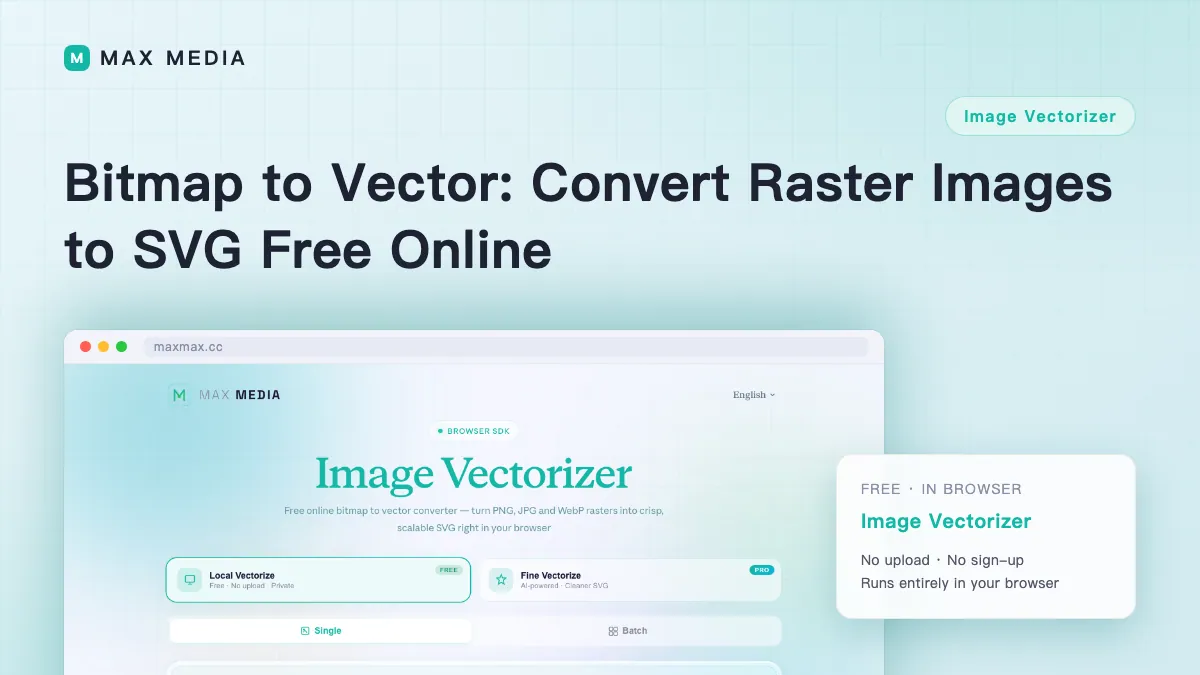
People searching "bitmap to vector" or "raster to vector" usually hold the same thing: a PNG or JPG, and a need for an SVG that scales without pixelating. This post covers the difference, which images are worth converting, and how to do it free online.
Bitmap vs. Vector in One Sentence
- Bitmap (raster): the image is a grid of pixels. PNG, JPG, WebP. Zoom in far enough and you get mosaic.
- Vector: the image is math — paths describing shapes. SVG is the standard. Scale it 10,000% and edges stay razor sharp, at a fraction of the file size.
Converting means tracing the shapes in the pixel grid and redrawing them as paths. Which is why results depend entirely on how complex the original shapes are.
What's Worth Converting
- ✅ Logos, icons, flat illustrations: clean shape boundaries and few colors — the best case, and the most common need (print, cropping, recoloring).
- ✅ Flat-style graphics: no gradients, no shadows — near-perfect conversion.
- ⚠️ Illustrations with gradients and fine detail: convertible, but needs higher precision settings; path count and file size grow.
- ❌ Photographs: photos have continuous tone with no "outlines" to trace — you'd get a huge, distorted SVG. For photos, use upscaling instead.
Free Online Conversion, Step by Step
- Open the image vectorizer and drop in a PNG/JPG/WebP — processed locally, nothing uploaded.
- Pick an engine: the local engine handles most images; the precision engine is for detail-rich work where edge accuracy matters.
- Pick a preset for the job: Logo for icons and marks; Full color for illustrations; Photo for photo-like inputs.
- Adjust the detail slider: higher means finer paths and bigger files — medium is usually best for logos.
- Preview against the original, then download the SVG.
After Converting
Open the SVG in a browser and check two things: edges still sharp at 400% zoom, and file size in a sane range (logo SVGs are typically tens of KB). To recolor, open the SVG in any text editor and change the hex values.
Have an image waiting? Try the image vectorizer, or read the deep dive on presets and how vectorization works.